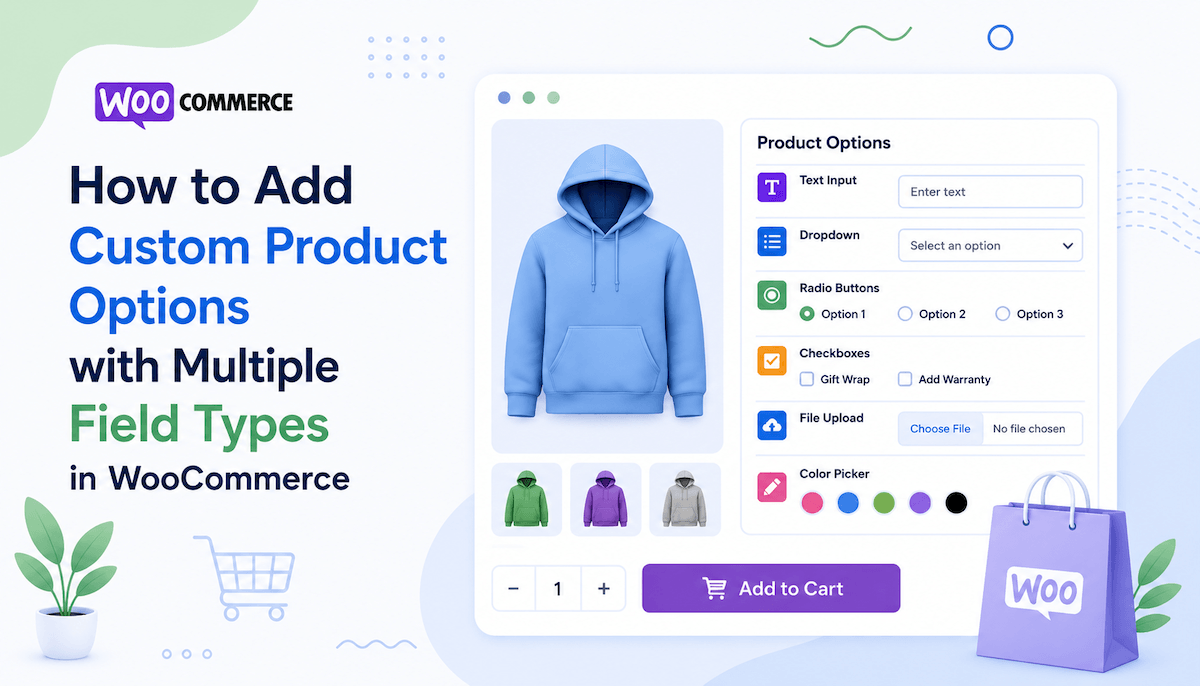
How to Add Custom Product Options with Multiple Field Types in WooCommerce
Imagine this scenario where your customer visits your store and finds a product they love. But it needs personalization. Maybe they want to add custom text, a specific color selection, maybe upload a file, or put in special instructions. The product is perfect, except it can't be customized the way they want.
So they leave. They go to a competitor who offers what they're looking for. You lose the sale.
This happens thousands of times daily across WooCommerce stores. Not because the products are bad. But because customers can't customize them properly.
The real opportunity isn't just selling products. It's letting customers create exactly what they need. Shirts with their names. Mugs with custom designs. Cakes with personalized messages. Furniture with specific dimensions.
When you offer true customization customers don't leave. They buy. They pay more. They become loyal.
When we take the WooCommerce product addons with multiple field types into consideration, the whole game changes. Not just one input field. But 19 different field types. Each solving different customization needs.
The question isn't whether to offer customization. It's which types of customization your customers actually need.
The Field Type Challenge
Here's what confuses most store owners about WooCommerce product addons.
There are 19 available field types. Text. Textarea. Dropdowns. Radio buttons. Checkboxes. File uploads. Date pickers. Color pickers. And more.
Most think "I'll just use text fields." That's like building a house with only one type of nail. Technically possible. Practically limiting.
Each field type solves a specific problem. Text fields for names. Dropdowns for choices from a list. File uploads for designs. Color pickers for precise color selection. Date pickers for scheduling.
Understanding which field type to use when transforms your customization strategy. Product add-ons in WooCommerce become powerful not because of quantity but because of the right choices.
Understanding the 19 Field Types
Let's explore what you're actually working with.
Text Input Fields
Text: Simple single-line text input. Names. Monogram text. Email addresses. Textarea: Multi-line text for longer content. Special instructions. Custom messages. Detailed notes. Email: Formatted for email addresses with validation. Telephone: Formatted for phone numbers. Auto-validation for format. Password: Secured text field for sensitive information. Number: Only numeric input. Quantities. Dimensions. Measurements.
Selection Fields
Select: Dropdown menu. Choose one option from a list. Works great when options are obvious from their labels. Multiselect: Choose multiple options from a list. Perfect for "select all that apply" scenarios. Radio Button: Choose one option but see all choices at once. Better UX than dropdown when options are limited. Checkbox: Yes/no decisions. "Add gift wrapping?" "Expedite shipping?" Simple binary choices.
Visual Selection Fields
Radio Image: Choose from visual options (images). Fabric textures. Paint samples. Design styles. See what you're picking. Radio Color: Choose from colors visually. See the actual color not just the name. Eliminates "is this really blue?" confusion. Color Picker: Open color wheel. Select exact color. Precision when you need it. Design customization.
Date and Time Fields
Date Picker: Calendar interface for date selection. Delivery dates. Event dates. Removes typing errors. Time Picker: Select specific time. Appointment times. Delivery windows. Clear scheduling.
Specialized Fields
File Upload: Upload files. Custom designs. Logos. Documents. Complete creative control for customers. Google Map: Location selection. Delivery address. Event location. Precise geographic input.
Content Fields
Heading: Section headers. Organize your form visually. No user input. Pure organization. Paragraph: Descriptive text. Explain requirements. Share information. Guide customer choices. No input needed.
This variety isn't complexity. It's solving actual problems customers face. Choose the right field type and customization becomes intuitive.
Why Multiple Field Types Matter
You could run your store with just text fields. It would work. But you'd be missing opportunities.
Consider a custom cake ordering scenario. You need:
Customer name (text field). Cake flavor (dropdown from predefined options). Cake size (radio buttons showing actual dimensions). Custom design (file upload). Delivery date (date picker). Special dietary needs (textarea). Add extra charges (checkboxes).
If you only had text fields customers would type "Chocolate or Vanilla?" in the notes. Ambiguous. You'd have to email clarifying.
With proper field types they select from a dropdown. Clear. No ambiguity. No follow-up needed.
The difference between generic text fields and strategic field types is the difference between unclear orders and crystal-clear fulfillment instructions.
Setting Up Your First Multi-Field Type Product
Let's walk through building a product with multiple field types.
First install the Product Addons and Custom Fields Manager by FmeAddons. Navigate to WooCommerce > Settings > Custom Product Fields.
Create a new rule. Name it something descriptive. "Custom T-Shirt Customization" or "Personalized Gift Options."
Enable the rule. Now add your first field.
For a t-shirt store you might add:
Field One: Customer Name (Text) Simple text input. Required. Customers type their name.
Field Two: Shirt Size (Radio Button) Show all sizes visually. Medium. Large. X-Large. Customers select one.
Field Three: Shirt Color (Radio Color) Display actual colors. Customers pick the exact color they want.
Field Four: Add Personalized Logo (File Upload) Upload a design file. Customers supply their own artwork.
Field Five: Logo Placement (Select Dropdown) Chest. Back. Sleeve. Customers choose where they want it.
Field Six: Rush Order (Checkbox) Yes or no. Add premium charge if selected.
Field Seven: Special Instructions (Textarea) Longer notes. Specific requirements. Anything else customers need to communicate.
That's seven fields. Three different field types. Each serving a specific purpose. Together they capture everything you need for fulfillment.
This is product add ons WooCommerce done right. Strategic field selection. Clear communication. Reduced back-and-forth.
Field Type Decision Framework
Choosing the right field type is simpler than it seems. Ask yourself specific questions.
Is it a choice from a limited list?
- Few options (2-5): Use Radio Button
- More options (6+): Use Select Dropdown
- Visual importance: Use Radio Image or Radio Color
Is it open-ended text?
- Single line: Use Text Field
- Multiple lines: Use Textarea
- Specific format (email/phone): Use Email or Telephone
Is it a yes/no decision?
- Simple yes/no: Use Checkbox
- Multiple selections: Use Multiselect
Do they need to upload something?
- Design files: Use File Upload
Do they need to pick dates or times?
- Scheduling: Use Date Picker or Time Picker
Do they need to select from colors?
- Visual color choice: Use Color Picker or Radio Color
Do they need to see location?
- Geographic selection: Use Google Map
Is it just informational?
- Explanatory text: Use Heading or Paragraph
This framework replaces guesswork. You match the question to the field type. Simple.
Pricing Across Multiple Field Types
An advantage of the product add ons WooCommerce is flexible pricing.
Some fields are free. Some cost money. Mix them strategically.
Free Fields:
- Customer Name (text)
- Special Instructions (textarea)
- Shirt Size (radio button)
- Logo Placement (select dropdown)
These gather information. They don't add cost.
Paid Fields:
- Logo Upload Service ($15)
- Rush Order ($25)
- Premium Color Selection ($5)
- Gift Wrapping ($10)
Customers see the prices. Make their choices. Order totals update automatically.
The same product becomes multiple revenue opportunities. Base price plus customization fees. Average order value increases significantly.
Real Customization Scenarios
Understanding actual use cases shows the power of multiple field types.
Scenario One: Print-on-Demand Store
Text Field: Design title/description File Upload: Artwork file (JPG/PNG/PSD) Select Dropdown: Product size Checkbox: Expedited processing (paid) Color Picker: Accent color (free) Textarea: Special instructions
Result: Customers submit complete information. Design team knows exactly what to create. Zero clarification emails.
Scenario Two: Wedding Invitation Service
Text Field: Couple names Date Picker: Wedding date Select Dropdown: Invitation style Radio Button: Printing options Multiselect: Included inserts Textarea: Custom wording File Upload: Logo or photo
Result: All wedding details captured. Invitations printed perfectly. Customers delighted.
Scenario Three: Custom Furniture
Text Field: Customer name Number Field: Width (inches) Number Field: Height (inches) Number Field: Depth (inches) Radio Color: Wood stain color Select Dropdown: Fabric choice Checkbox: Delivery assembly (paid) Textarea: Special requests
Result: Exact dimensions captured. No measurement errors. Custom builds match specifications perfectly.
Scenario Four: Personalized Gift Items
Text Field: Recipient name Text Field: Gift message Date Picker: Delivery date File Upload: Custom photo Checkbox: Gift wrapping (paid) Radio Button: Gift wrap color Checkbox: Gift receipt (optional) Textarea: Special handling notes
Result: Gifts perfectly personalized. Delivery timing perfect. Recipients thrilled.
Each scenario uses different field types. Each captures exactly what's needed. No wasted fields. No missing information.
Mobile Responsiveness Across Field Types
An often-overlooked advantage: all field types work on mobile.
Text fields adapt to mobile keyboards. Dropdowns become mobile-friendly selectors. Radio buttons stack vertically. File uploads work with mobile photo libraries. Date pickers open mobile calendars.
When customers shop on phones (increasingly common) the WooCommerce product addons experience stays smooth. No frustration. No "this doesn't work on mobile" problems.
This mobile-first approach is essential in 2026. If your customization fields don't work on mobile you're losing sales.
Common Field Type Combinations That Work
Certain field types naturally pair together.
Information Capture Combo: Text Field + Textarea + Date Picker Captures name, details, and timing.
Visual Selection Combo: Radio Color + Radio Image + File Upload Complete visual customization.
Choice + Details Combo: Select Dropdown + Checkbox + Textarea Let them choose + add options + provide details.
Time-Sensitive Combo: Date Picker + Time Picker + Checkbox (expedite) Full scheduling control.
Design Customization Combo: File Upload + Color Picker + Number Field (quantity) Complete creative control.
These combinations aren't rules. They're patterns that work well. Mix and match based on your needs.
Avoiding Field Type Mistakes
Understanding what doesn't work prevents problems.
Mistake One: Too Many Field Types Per Product
Seven fields might work. Seventeen fields overwhelms. Customers abandon forms that feel too complicated.
Mistake Two: Wrong Field Type for the Job
Don't use a textarea when a dropdown would work better. Don't use file upload when radio buttons suffice.
Mistake Three: Unclear Field Labels
"Color selection" is unclear. "Choose shirt color" is clear.
Mistake Four: No Guidance
Help customers understand what you need. Explain required vs optional. Suggest formats for uploads.
Mistake Five: Ignoring Mobile
Test every field type on mobile before launching.
Organizing Fields for Optimal UX
Field order matters. Logical flow improves completion rates.
Start with simple required information. Name. Size. Essential choices.
Then move to optional nice-to-haves. Color preferences. Special requests.
End with additions. Expedited shipping. Gifts options. Things that add cost.
This progression feels natural. Customers complete essential parts first. Optionally add more. Most complete more when given the chance.
Testing Your Multi-Field Configuration
Before going live test everything.
Add a test product to your cart. Interact with every field type. Verify text fields accept input. Verify dropdowns work. Verify file uploads function. Verify pricing updates for paid fields.
Test on desktop. Test on mobile. Test in different browsers.
Discover problems during testing, not after launch.
Conclusion: Strategic Customization
WooCommerce product addons with multiple field types isn't about maximum options. It's about strategic customization.
Each field type solves a specific problem. Use them thoughtfully. Choose the right field type for each customization need.
The result is better customer experience. Clearer communication. Reduced fulfillment errors. Higher order values through paid customizations.
The 19 field types available aren't limitations. They're solutions waiting to be applied to your specific business needs.
Your competitors probably aren't using strategic product add ons WooCommerce. You can. This gives you competitive advantage. Better customization. More sales.
Start simple. Add customization to your highest-demand products first. Use strategic field types. Test thoroughly. Then expand.
Your customers want to customize. Give them the tools. Watch your sales transform.
About The Author