A Complete Guide to Building Dynamic Pricing with a WooCommerce Price Calculator Plugin
You sell custom rope. A customer needs 50 feet. Another needs 150 feet. A third needs 25 yards. Each needs different pricing, but they're all the same product.
Without a price calculator, you quote each customer manually. You receive emails asking for pricing on various lengths. You calculate, respond, wait for confirmation. Some customers go to competitors with online pricing tools.
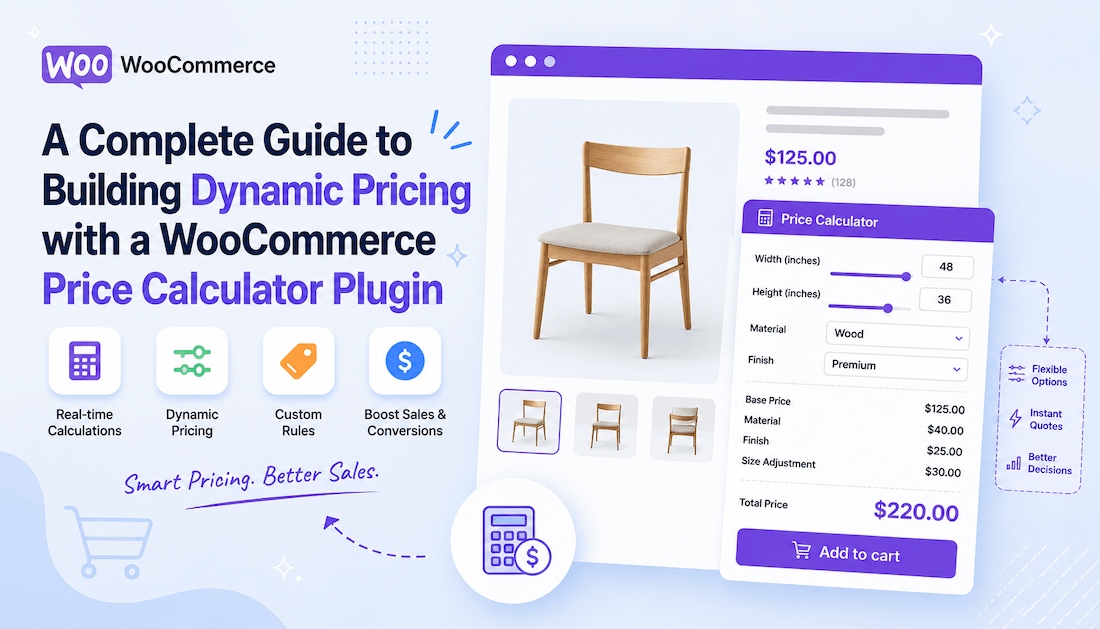
With a measurement price calculator WooCommerce plugin, customers enter their needed measurements. The system instantly calculates accurate pricing. They see the total before checkout. No quotes. No delays. No lost sales to faster competitors.
This guide shows how to build a complete dynamic pricing system for measurement-based products using a WooCommerce price calculator plugin.
Understanding Dynamic Pricing for Measurement-Based Products
Most WooCommerce stores sell fixed products. A t-shirt is a t-shirt. Pricing is straightforward.
But many businesses sell variable-sized products. Rope priced by length. Fabric priced by area. Mulch priced by volume. Oil priced by weight. These products need dynamic pricing that changes based on the measurement the customer specifies.
Dynamic pricing responds to customer input. The customer enters a measurement. The system calculates price in real-time based on that measurement. This provides accurate, instant pricing with no manual intervention.
Benefits of dynamic pricing for measurement-based products include faster sales cycles, reduced customer support questions, higher conversion rates, and better inventory management.
The Nine Measurement Types: Choosing the Right One for Your Products
The price calculator WooCommerce plugin by Extendons supports nine distinct measurement types. Choosing the correct type for each product ensures accurate pricing.
Price by Length
For products sold by a single linear dimension: rope, wire, tubing, cloth, fabric. Customers enter the length they need. The system prices based on that length.
Seven measurement units are supported: millimeter, centimeter, inches, foot, yard, meter, and mile. Choose the unit matching your product's standard measurement.
Price by Weight
For products sold by weight: oil, rice, sugar, meat, coffee, herbs. Customers specify the weight they need. Pricing calculates based on weight.
Five units are supported: kilograms, grams, ounces, pounds, and tons. Choose based on your product and market expectations.
Price by Area (Length x Width)
For products requiring two dimensions: carpet, blinds, flooring, wallpaper, tile. Customers enter two measurements (length and width). The system multiplies them to calculate area and derives pricing.
Eight square unit options exist: square millimeter through square mile.
Price by Area (Single Square)
For products where only the total area matters: a customer knows they need 100 square feet but doesn't think in terms of length and width. A single input field accepts the area. Pricing calculates directly from that area.
Price per Box
For bulk products sold by box: customers enter dimensions to calculate how many boxes they need. Instead of pricing per measurement, you price per box. The calculator determines box quantity needed.
Price by Volume (Length x Width x Height)
For three-dimensional products: mulch, soil, concrete, paint, water tanks. Customers specify three dimensions. The system calculates volume and prices accordingly.
Thirteen volume units are supported, from cubic millimeters to cubic gallons.
Price by Surface Area
For products covering surfaces: wrapping paper, paint, coating. Surface area is calculated and pricing applies per unit of surface area.
Installing and Configuring the Price Calculator Plugin
Implementation begins with installation and basic configuration.
Step 1: Install the Plugin
Download the WooCommerce measurement price calculator zip file from your WooCommerce account. Navigate to WordPress Admin > Plugins > Add New. Click Upload Plugin. Select the downloaded file. Click Install Now and Activate.
After activation, the plugin is ready for configuration. No additional setup is required yet.
Step 2: Convert a Product to Measurement-Based Pricing
Edit an existing product or create a new one. In the Product Data section, change the product type from Simple Product to Measurement.
Two new tabs appear: Measurement and Min/Max Quantity Value. The Measurement tab contains all configuration options for dynamic pricing.
Step 3: Select Your Measurement Type
In the Measurement Settings tab, the first decision is selecting which measurement type applies to this product.
Choose from the nine types based on your product. A carpet uses Price by Area (Length x Width). A rope uses Price by Length. A mulch pile uses Price by Volume.
Step 4: Configure Input and Output Units
Input Unit specifies what unit the customer enters. If selling cloth, they might enter measurements in feet (input unit). The output unit specifies how pricing is calculated. You might price per square foot.
Choose input and output units that match your business logic. If you manufacture in meters but customers think in feet, allow feet as input but calculate pricing in meters internally.
Step 5: Set Pricing Labels
Pricing Label displays next to the price on the product page. For an area-based product, the label might be "per sq. ft." For weight-based, it might be "per lb."
Add a Custom Label for the input field. This tells customers what to enter. "Enter length in feet" is clearer than an unlabeled input box.
Step 6: Enable Per-Unit Pricing Display
Check "Show Product Price Per Unit" to display the unit price on the product page. If your base price is $5 per foot, customers see this clearly. It helps them understand how pricing works.
Step 7: Create Your Pricing Table
This is where dynamic pricing is actually built. The Pricing Table tab contains measurement ranges and corresponding prices.
Create rows representing different measurement ranges. Each row specifies:
- Measurement Range (minimum and maximum measurement for this tier)
- Price Per Unit (the unit price for this range)
- Sale Price Per Unit (optional discounted price for this range)
Example for a rope product priced by length:
Range 1: 0-50 feet at $2.00 per foot Range 2: 51-100 feet at $1.80 per foot Range 3: 101-200 feet at $1.50 per foot Range 4: 200+ feet at $1.25 per foot
As a customer adjusts the length input, the system identifies which range they fall into and applies that range's pricing. A customer ordering 75 feet automatically gets the $1.80 per foot rate.
This tiered pricing incentivizes larger orders while accurately pricing small orders.
Step 8: Configure Minimum and Maximum Purchase Limits
In the Min/Max Quantity Value tab, set boundaries on what customers can order.
Minimum Quantity prevents unrealistic small orders. If processing costs make small quantities uneconomical, set a minimum of 10 feet or 5 pounds.
Maximum Quantity prevents over-ordering beyond your production capacity. If you can produce maximum 500 feet per month, set a maximum of 500.
Price: This is the fallback price if a customer's measurement doesn't match any defined ranges. It ensures pricing is always available.
Step 9: Enable Stock Management
Check "Manage Stock" to track inventory in the same measurement unit as your product. If selling rope in feet, inventory is tracked in feet. If 1000 feet are in stock and a customer orders 250 feet, the system deducts 250 feet from inventory.
This prevents overselling and provides accurate inventory visibility.
Step 10: Test Your Configuration
Before going live, test the dynamic pricing thoroughly.
Visit your product page. You should see the measurement input field(s). Enter a measurement. The price should calculate and update in real-time. Try different measurements to verify pricing tiers work correctly.
Test boundary conditions. Enter the minimum quantity. Enter the maximum quantity. Enter amounts between ranges. Verify pricing applies correctly in all scenarios.
Test on mobile devices. Input fields should be accessible and calculations should work smoothly.
Building Effective Pricing Tables
The pricing table is the core of your dynamic pricing system. Effective tables balance profitability with customer value.
Understand Your Costs
Before creating pricing tiers, understand your actual costs at different scales. A 50-foot order has different per-unit costs than a 500-foot order. Manufacturing costs, material waste, and labor efficiency differ.
Price each tier to cover costs and provide reasonable profit margin, even accounting for volume discounts.
Create Clear Tier Boundaries
Boundaries should make sense to customers. For length-based products, boundaries might be 0-25, 26-50, 51-100, 100+. These feel natural and easy to understand.
Avoid confusing boundaries like 0-37 or 52-89. Customers don't know which tier they fall into without calculating.
Price Tiers Progressively
Each tier should be slightly cheaper per unit than the previous tier. This rewards larger orders while preventing sudden price drops that frustrate smaller-order customers.
Tier 1: $2.50 per unit Tier 2: $2.25 per unit (10% discount) Tier 3: $2.00 per unit (20% discount) Tier 4: $1.75 per unit (30% discount)
Progressive discounting feels fair and incentivizes larger orders.
Test Tier Pricing
Model different order sizes and calculate total revenue. A single large order might generate more revenue than three medium orders, even with volume discounts.
Test whether your tiered pricing meets revenue goals. Adjust tiers if necessary.
Advanced Features for Optimization
Beyond basic dynamic pricing, several features optimize your pricing system.
Support for Decimal and Fractional Input
Customers can enter precise measurements: 50.5 feet, 3.25 pounds, or fractional measurements (3/4 inch). The calculator handles all formats. This flexibility means customers get exact pricing for their exact needs.
Stock Management in Measurement Units
By enabling stock management in your measurement units, inventory accuracy improves. If you have 500 feet of rope in stock and a customer orders 125 feet, the system shows 375 feet remaining. No confusion between units.
Multilingual Support
The price calculator plugin supports WPML for multilingual stores. Measurement labels, input prompts, and pricing calculations adapt to each language. International customers see pricing and inputs in their language.
Flexible Entry Methods
Choose between free-form input (customers enter any value between your min and max) or limited form (customers select from predefined options). Free-form works for custom orders. Limited form works for standard sizes.
Best Practices for Measurement-Based Pricing
Implementing dynamic pricing correctly requires attention to details.
Be Transparent About Pricing Logic
Display your per-unit pricing clearly. If customers understand "$1.50 per square foot," they trust the pricing. Hidden or confusing pricing calculations create distrust.
Communicate Measurement Units Clearly
Customers shouldn't guess what units to enter. Label input fields explicitly: "Enter length in feet," "Enter weight in kilograms." Ambiguous instructions cause errors.
Set Realistic Minimums and Maximums
Minimum quantities should reflect your actual minimum profitable order size. Maximums should reflect your actual production capacity. Unrealistic limits frustrate customers.
Price Competitively
Research competitor pricing for measurement-based products. Your pricing should be competitive. If your per-unit costs are significantly higher than competitors, you need either volume or differentiation to justify the premium.
Monitor and Adjust
After launch, monitor which measurement ranges customers order most frequently. If 80% of orders fall in one tier, your tier boundaries might be suboptimal. Adjust tiers based on real customer behavior.
Test Edge Cases
Test orders at tier boundaries. Test minimum and maximum quantities. Test fractional and decimal inputs. Test on different devices. Edge cases reveal configuration issues.
Common Challenges and Solutions
Challenge: Customers Don't Understand Tiered Pricing
Some customers don't realize larger orders cost less per unit. They compare tier prices and get confused.
Solution: Display a clear pricing table on the product page showing measurement ranges and corresponding unit prices. A visual table makes tiering obvious.
Challenge: Inventory Tracking in Multiple Units
You track production in meters but customers order in feet. Converting between units is error-prone.
Solution: Use the stock management feature in your measurement unit. Tell the system customers order in feet. The system automatically converts to your internal unit for tracking.
Challenge: Fractional Orders Complicate Pricing
A customer orders 50.5 feet. Standard tiering doesn't account for the 0.5 foot overage.
Solution: The calculator handles fractional inputs automatically. Price is calculated based on actual measurement, not rounded tiers. This provides precise, fair pricing.
Challenge: Competitors Offer Lower Prices
A price calculator makes your pricing visible. If competitors undercut you, customers see it immediately.
Solution: Compete on value beyond price. Faster turnaround, higher quality, better customer service, easier ordering. A price calculator doesn't guarantee you win on price, but it removes friction from your sales process.
Measuring Success
After implementing dynamic pricing, track these metrics:
Conversion Rate
Are more visitors completing purchases? Dynamic pricing removes quoting delays, so conversion should increase. Track improvement month-over-month.
Average Order Value
Are customers ordering larger quantities because bulk pricing incentivizes it? AOV often increases with tiered pricing that rewards volume.
Support Ticket Reduction
Do you receive fewer pricing questions? Transparent dynamic pricing should reduce support burden significantly.
Inventory Accuracy
With stock management in measurement units, inventory accuracy improves. You should see fewer overselling issues.
Customer Satisfaction
Survey customers on whether dynamic pricing improved their experience. Most report satisfaction with transparent, instant pricing versus manual quotes.
Conclusion: Dynamic Pricing as Competitive Advantage
Measurement-based products have traditionally required manual quoting. This slows sales cycles and creates friction.
A WooCommerce price calculator plugin removes this friction. Customers enter measurements. Pricing calculates instantly. They see total cost before checkout. The sales process feels modern and professional.
Setup takes a few hours. Configuration requires understanding your cost structure and pricing strategy. Testing ensures accuracy. Then you have a system scaling your business beyond what manual quoting allows.
Implement dynamic pricing for your highest-volume products first. Monitor results. Refine pricing based on customer behavior. Then expand to your full catalog.
Your customers will appreciate transparent pricing. Your conversion rates will improve. Your support burden will decrease. Your business will scale more efficiently.
Start building your dynamic pricing system today.
About The Author